Profile Customization
Your store profile is your digital storefront—make it yours with custom branding, images, and links.
Accessing Store Settings
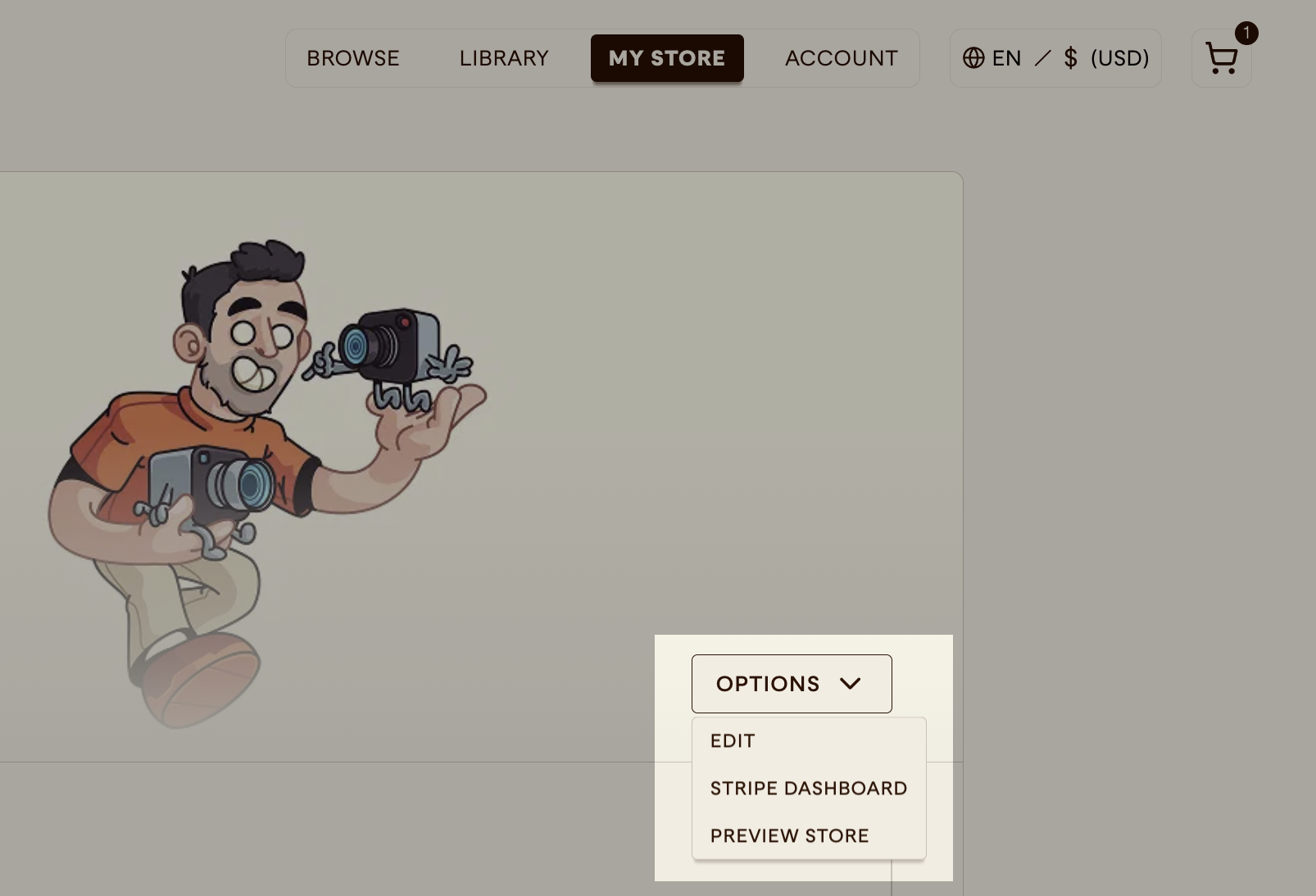
- Log in to your Panels Store account
- Navigate to My Store
- Click on Options > Edit
Profile Elements
Store Name
Your store's identity and part of your URL.
Guidelines:
- Choose something memorable and brand-appropriate
- Appears in your store URL:
panels.store/store/YOUR_STORE_NAME - Can be changed, but URL is only set once (when you create your account). You can request us to update it for you, but it may affect existing links.
Keep it consistent with your brand across social media and other platforms.
Store Description
A brief overview of your store and what readers can expect.
Best Practices:
- Keep it concise (2-3 sentences)
- Highlight what makes your comics unique
- Include the genres or types of comics you publish
- You can choose to update it seasonally or when launching new series
Example:
"Independent publisher of sci-fi and fantasy comics. Featuring award-winning stories from emerging creators and established voices in the industry."
Avatar/Profile Image
Your store's profile picture.
Specifications:
- Minimum size: 400x400px
- Recommended: 800x800px
- Format: JPG, PNG
- Aspect ratio: 1:1 (square)
Tips:
- Use your logo or distinctive branding
- Ensure it's recognizable at small sizes
- Keep it high-contrast for visibility
- If your store is featured in the home page, this image will be used
Header Image
A banner image that appears at the top of your store page.
Specifications:
- Recommended size: 1280x400px
- Format: JPG, PNG
- Aspect ratio: Approximately 4.8:1
Tips:
- Showcase your best artwork
- Feature key characters or series
- Use high-quality images that represent your brand
- If your store is featured in the home page, this image might be used
Links & Social Media
Social Media Links
Connect your social profiles to help readers find you elsewhere.
Supported Platforms:
- Twitter/X
- Patreon
- Kickstarter
- Custom URL (personal website)
How to Add:
- Go to Store Settings
- Find the Social Media section
- Paste the full URL of your profile
- Save changes
Links will appear as icons on your store page.
Preview how your store will look for users: My Store > Options > Preview Store
Best Practices
Visual Consistency
- Use consistent colors and branding across avatar, header, and comics
- Match the tone of your visual identity to your content
- Update seasonally to keep your store fresh
Professional Presentation
- Use high-quality images (avoid pixelated or blurry images)
- Proofread your description for typos
- Keep links up-to-date
- Remove broken or outdated links
SEO & Discoverability
- Include relevant keywords in your description
- Be specific about genres and themes
- Mention awards or notable achievements
- Use your real creator name if you're known by it
Common Questions
Can I change my store name?
Yes, but keep in mind it won't change your store URL.
How many custom links can I add?
One per platform plus a custom URL
How do I remove a social link?
Simply delete the URL from the field and save. The icon will disappear from your store page.