Stripe Connect Onboarding
To receive payouts from your comic sales, you'll need to connect your store to Stripe, our payment processing partner.
Supported Regions
Stripe Connect is currently available for sellers in:
- 🇪🇺 European Union countries
- 🇬🇧 United Kingdom
- 🇺🇸 United States
If you're located outside these regions, please contact us at publish@panels.store to discuss alternative payment arrangements.
Starting the Onboarding Process
From Your Store Dashboard

- Log in to your Panels Store account
- Navigate to My Store
- A yellow banner should appear under your store header
- Click Visit Stripe and follow their instructions
What You'll Need
Have these ready before starting:
Personal Information
- Legal name
- Date of birth
- Address
- Phone number
- Tax ID or Social Security Number (depending on your country)
Business Information (if applicable)
- Business name and type
- Business tax ID
- Business address
Bank Account Details
- Bank account number
- Routing number (US) or IBAN (EU/UK)
- Bank name and address
Stripe may require additional verification documents depending on your country and transaction volume.
The Onboarding Flow
Step 1: Create Stripe Account
Click the setup link from your store dashboard. You'll be redirected to Stripe's secure onboarding flow.
Step 2: Provide Information
Complete the Stripe onboarding form with:
- Your personal/business details
- Bank account information
- Identity verification
Step 3: Verification
Stripe will verify your information. This usually happens instantly, but may take 1-2 business days in some cases.
Step 4: Return to Panels Store
Once complete, you'll be redirected back to your Panels Store dashboard.
✅ Your store is now ready to accept payments and receive payouts!
Managing Your Stripe Account
Updating Information
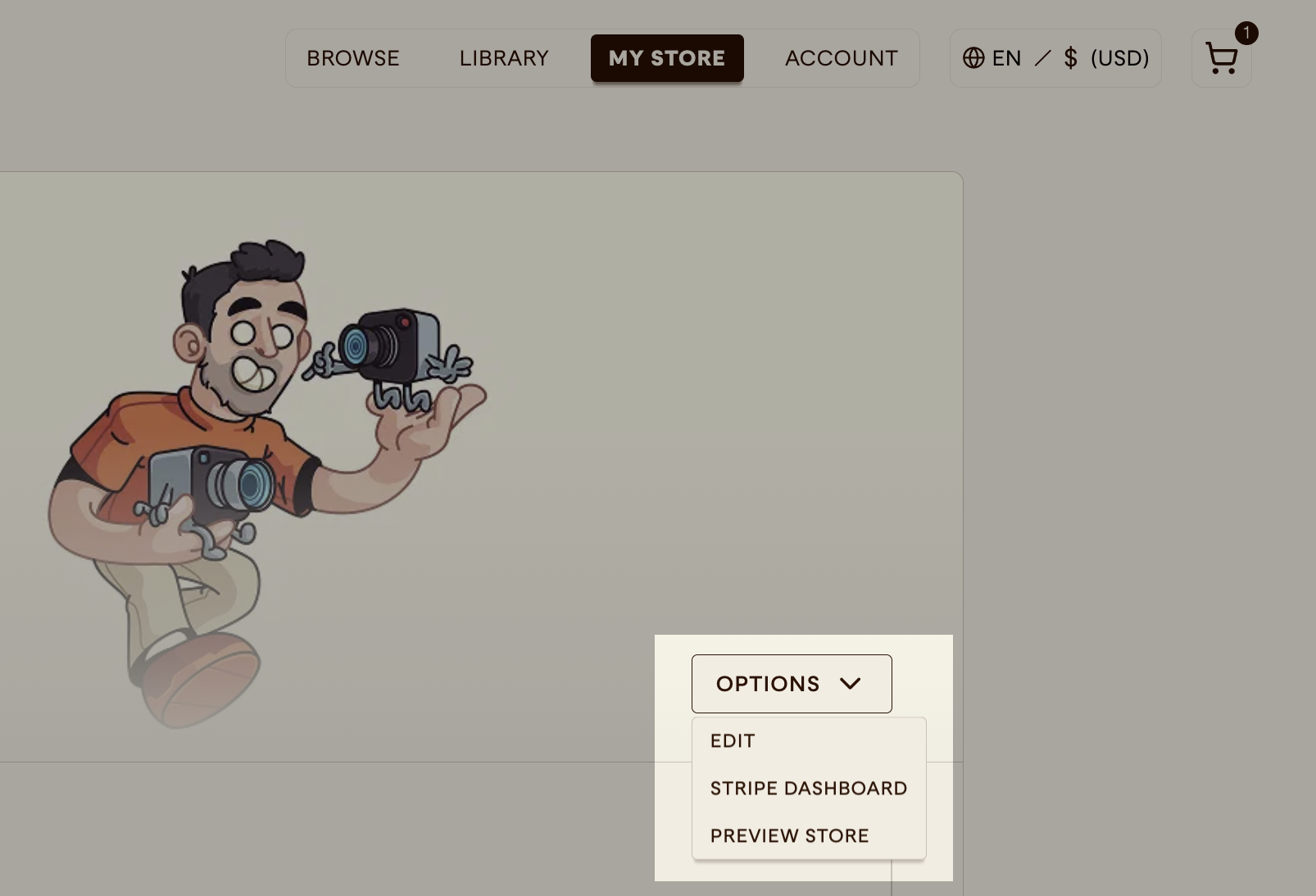
If you need to update your bank details or other information:
- Go to My Store > Options
- Click Stripe Dashboard
- You'll be redirected to your Stripe dashboard
- Update your information there
Stripe Dashboard
Your Stripe dashboard provides:
- Monthly payout information
- Account settings
- Tax documents
- Payment method management
For detailed sales and transaction information, use the Panels Store dashboard rather than Stripe. Stripe will only show your monthly payouts, not individual comic sales.
Payout Configuration
After connecting Stripe, configure your payout preferences by visiting My Store > Payouts
Minimum Payout Threshold
Set the minimum balance required before receiving a payout:
- Minimum: $4 (or equivalent)
- Default: $50 (recommended)
- Can be changed anytime
How it works:
- If your balance meets the threshold on the 1st of the month, you receive a payout
- If not, the balance rolls over to the next month
- Higher thresholds mean fewer payouts with lower fees
Learn more about payout fees and schedules in Payout System.
Troubleshooting
Can't Complete Onboarding?
Missing required information
- Double-check all fields are filled correctly
- Ensure your bank account details are accurate
Verification failed
- Contact Stripe support through your Stripe dashboard
- They can help resolve verification issues
Contact publish@panels.store if you have any issues connecting or setting up your account.
Account Under Review
If Stripe flags your account for additional review:
- Provide any requested documentation promptly
- Check your email for Stripe communications
- This is a normal part of their verification process
Need to Change Bank Account?
You can update your bank details anytime through the Stripe dashboard without affecting your store.
Security & Privacy
Panels Store never sees or stores your bank account information. All financial data is:
- Handled directly by Stripe
- Encrypted and secure
- PCI-DSS compliant
- Protected by Stripe's security measures
Next Steps
With Stripe connected, you're ready to:
Your store is now fully operational! 🎉