Account Setup
Once you've received your invite link, you're ready to create your account and set up your store.
Creating Your Account
Click on your invite link and choose how you want to sign in:
- Google - Sign in with your Google account
- Apple - Sign in with your Apple ID
Choose the method you'll want to use for logging in going forward. You can't change this later without creating a new account.
After signing in, you'll be directed to the store creation page where you'll set up your storefront.
Store Profile Setup
Required Information
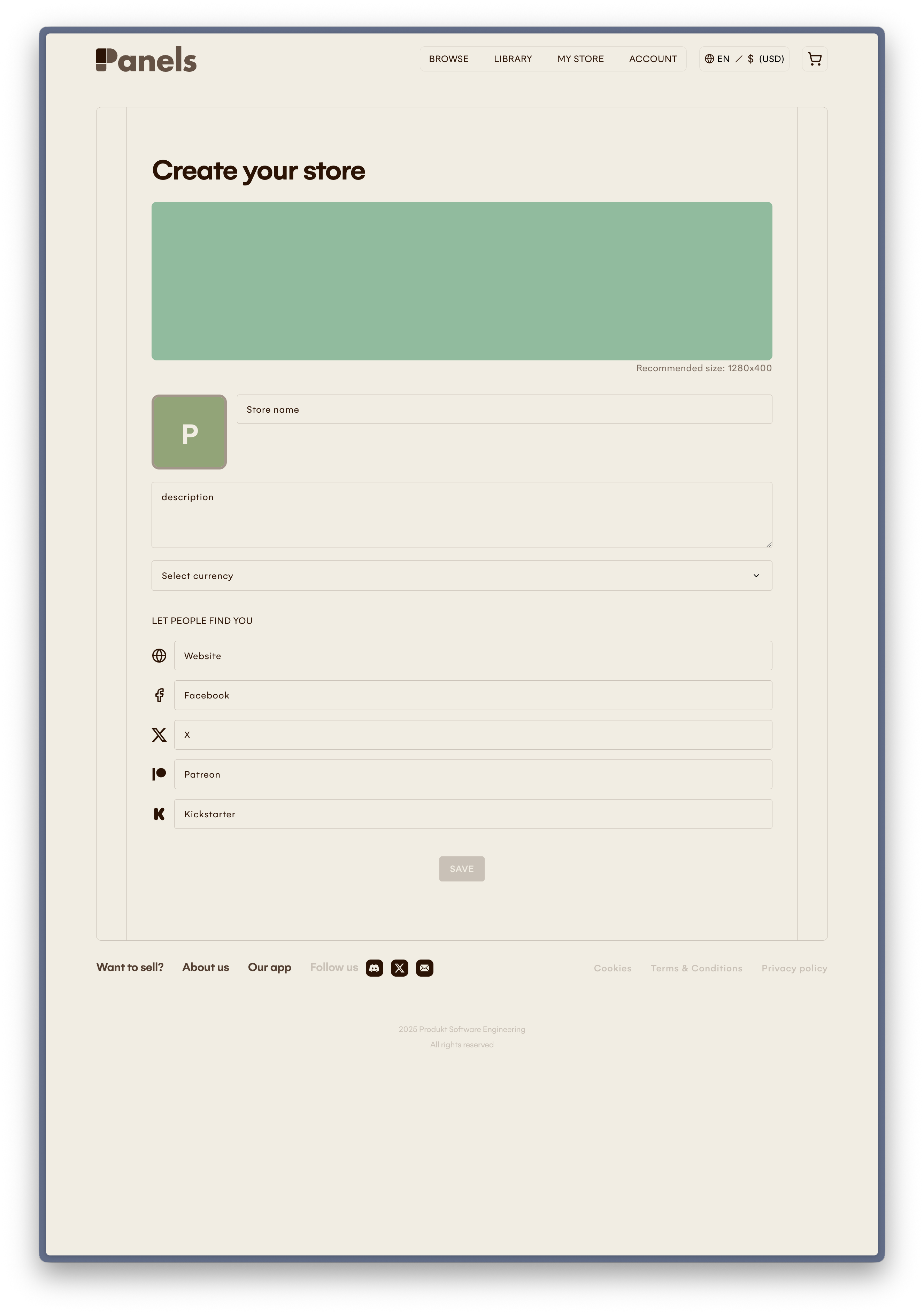
Store Name
- Your store's display name
- This will be part of your store URL:
panels.store/store/YOUR_STORE_NAME - Choose something memorable and representative of your brand
Store Description
- A brief description of your store and the comics you publish
- This helps readers discover and understand your work
- Appears on your store page
Avatar
- Your store's profile image
- Recommended size: 400x400px minimum
- Accepts: JPG, PNG
Optional Customization
Header Image (Strongly recommended)
- A banner image for the top of your store page
- Recommended size: 1280x400px
- Accepts: JPG, PNG
Social Media Links
- Connect your social media profiles or website
- Helps readers follow you on other platforms
Currency Selection
Choose the currency for your store:
- This determines how you set prices for your comics
- Can be changed later in your store settings if needed
- Your stripe account link (set up later in your store profile) will be used to decide in which currency you will receive your payouts
The currency you select doesn't affect which regions can purchase from you. Buyers will see prices converted to their local currency.
After Setup
Once you've completed your store profile:
✅ Your store is created (but empty)
⏭️ Next: Set up Stripe to enable payouts
📚 Then: Start publishing comics
Editing Your Profile Later
You can update your store profile anytime:
- Log in to your account
- Go to My Store
- Click on store settings or profile
- Update any information
- Save changes
Keeping your profile updated with your latest work and links helps readers discover and connect with you.
Next Steps
Once your account is set up, proceed to Stripe Onboarding to connect your payment method and start selling.